How to make your small business website faster on phones
· 4 min read

By Liam Yapp, Founder of Natter
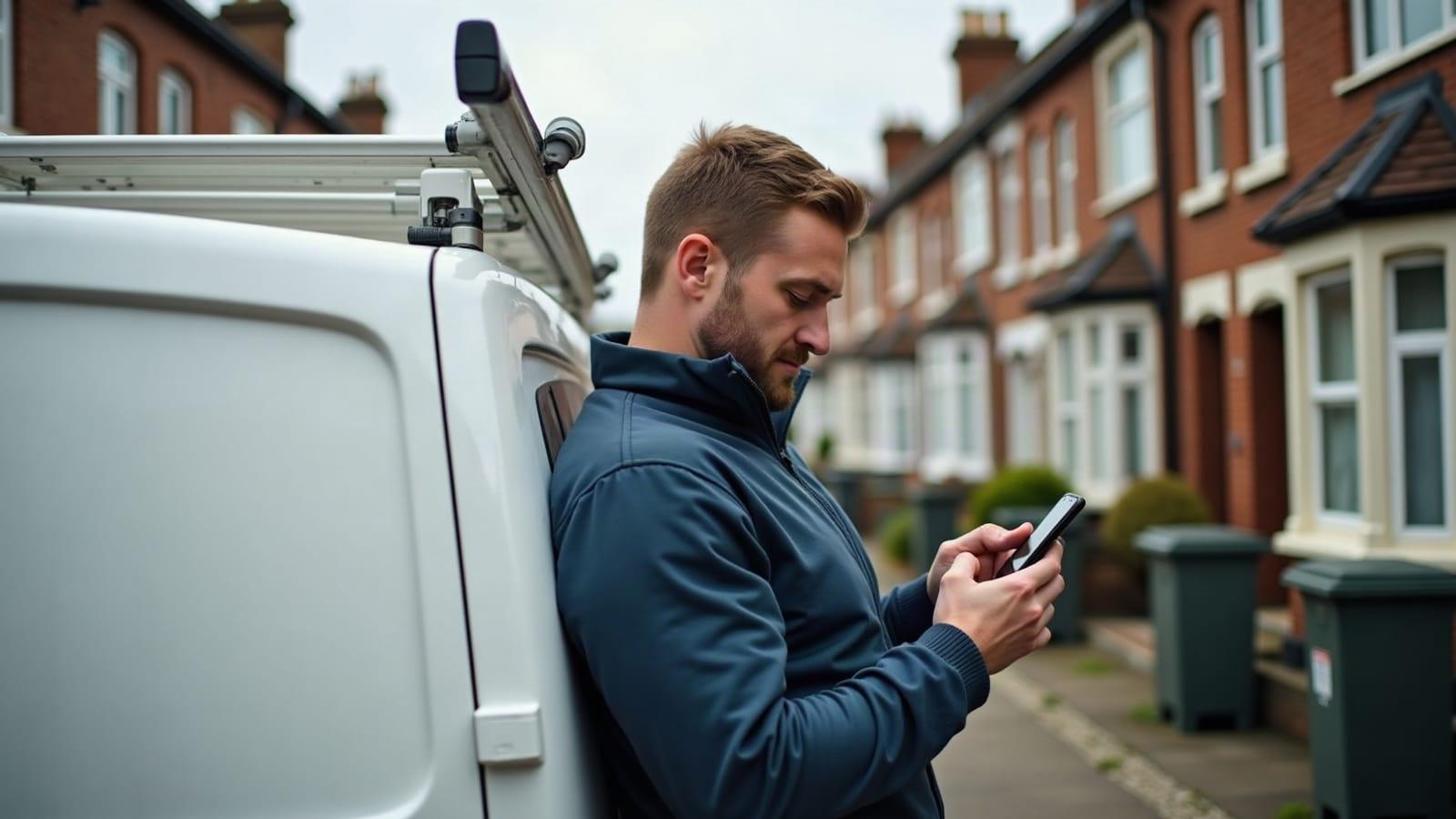
Picture someone stood at a bus stop in Wigan with one bar of signal, trying to find a plumber. They tap your site. Nothing. A white screen, a spinning circle, then half a photo. They hit back and tap the next one.
That's what a slow site costs you, and you'll never see it happen. Here's how to check yours and what to do about it.
First, test it (it takes a minute)
Go to Google's free PageSpeed Insights, paste in your web address and press Analyse. Make sure the "Mobile" tab is selected, because that's the one that matters.
You'll get a score out of 100:
- 90 or above: you're fine. Have a cup of something and skip to the end.
- 50 to 89: room to improve. The fixes below will usually help.
- Under 50: it's slow, and people are almost certainly leaving.
Underneath, Google lists what's slowing it down. A lot of it is jargon, but the fixes for the common ones are simple.
Also try it the old-fashioned way. Turn off Wi-Fi on your phone, open your site on 4G and count. If you're still waiting at three or four seconds, so is everyone else.
1. Shrink your photos
This is the big one on most small business sites, and it's the easiest to fix.
A photo straight off a modern phone can be 4 or 5 MB. Your home page might have six of them. That's a lot to download over a patchy signal just to see a picture of your shopfront.
What to do:
- Resize before you upload. A photo on a website rarely needs to be wider than about 2,000 pixels. Most phone photos are double that.
- Compress it. Free tools like Squoosh (made by Google) let you drag a photo in and save a much smaller copy that looks the same.
- Use WebP if you can. It's a newer image format that's usually smaller than JPEG for the same quality. Squoosh can save as WebP, and most modern website builders accept it.
If you're on WordPress, an image plugin can do the shrinking for you automatically when you upload.
2. Ditch the slideshow
Big rotating banners at the top of the home page look smart on a laptop. On a phone, they're often the slowest part of the page, because the browser has to load every slide, not just the one you're looking at.
Most people don't wait for slide two anyway. One strong photo and a clear line saying what you do will load faster and work better.
Same goes for autoplay background videos. Lovely on a fast connection, painful on a train.
3. Cut out what you don't use
Every bit of extra stuff on your site has to load. Go through and ask whether you actually need:
- that Instagram feed widget at the bottom
- the chat bubble you never answer
- a second map, a review carousel and a weather widget
- three different fonts when one or two would do
On WordPress, look at your plugins. It's common to find twenty or thirty, half of them from a feature you tried once in 2019. Deactivate the ones you don't use, then delete them.
4. Check your hosting
If you've shrunk everything and the site's still slow, the problem might be where it lives.
Very cheap shared hosting puts your site on a server with hundreds of others. When one of them gets busy, yours slows down. If PageSpeed mentions a slow "server response time", that's usually the hint.
You don't need anything fancy. But if you're paying a couple of quid a month and the site crawls, it may be worth asking your host about a better plan, or moving.
5. Look at what Google calls Core Web Vitals
Further down the PageSpeed report you'll see three measurements Google uses to judge how a page feels to use. In plain English:
- Largest Contentful Paint (LCP): how long until the main thing on the screen, usually your big photo or headline, shows up. Google wants under 2.5 seconds.
- Interaction to Next Paint (INP): how quickly the page reacts when someone taps a button. Under 200 milliseconds is good.
- Cumulative Layout Shift (CLS): whether things jump about while the page loads, like a button that moves just as you go to tap it. Under 0.1 is good.
Google explains these properly in its Core Web Vitals guide. Fixing photos and cutting clutter usually improves all three without you needing to think about them separately.
6. Test again
Once you've made changes, run PageSpeed again. Scores bounce around a little each time, so don't panic over a few points either way. What you're after is a clear jump, and a site that feels quick when you open it on your own phone on 4G.
It's worth checking every few months too. Sites tend to get slower over time as photos and plugins pile up. If you're doing a wider tidy-up, our post on how to tell if your website is out of date has nine other quick checks.
When it's the site itself
Sometimes the honest answer is that the site was built slow. Old themes and page builders stack layer on layer of code, and no amount of photo shrinking will fix that.
If that's where you are, we build sites that are quick on phones from the start. Answer a few questions and Natter mocks one up for you to look at first. No card details, no sales call. Start your website.
Comments
No comments yet. Ask a question or share what worked for you, and I'll reply.
Leave a comment